On this page
Connect Claude, ChatGPT, Cursor, Claude Code or Codex to Volume, describe a slideshow, and watch your agent build it in the editor.
Slideshows are one of the most effective formats on TikTok and Instagram right now. Some of the fastest-growing consumer apps rely on them to win customers, drive downloads, and build brand awareness. At Scratch AI, we built a waitlist of more than 5,000 people before launch using nothing but TikTok slideshows we made by hand.
The catch is that making slideshows by hand takes a lot of time. So we built Volume to let your AI do it for you.
With the Volume MCP, you connect the AI tool you already use (Claude, ChatGPT, Cursor, Claude Code, or Codex), describe the slideshow you want, and your agent builds it directly inside the Volume editor while you watch. This guide walks through the whole process, from connecting your agent to posting your first slideshow.
Step 101Connect your agent
Open Volume and click Connect your agent. You'll find it in the bottom-left sidebar, in the top bar of the editor, and on the Editor home page. A window opens with a tab for each supported tool: Claude Code, Claude, ChatGPT, Cursor, and Codex. Pick yours and follow the steps. Here's the same window:
https://app.tryvolume.app/api/mcp
- 1.In claude.ai or the desktop app: Settings, Connectors,
Add custom connector. - 2.Name it
Volume, paste the URL above, and add it. - 3.Click Connect on it. A Volume tab opens: click Connect.
- 4.Open a slideshow in Volume, then ask: “Use Volume to make an Instagram carousel about my product. Render it and show me before you say it is done.”
Setup takes a minute or two. Once you're connected, your agent can create slideshows, edit them, and render them in your workspace.
Step 202Choose your starting point
You have two options.
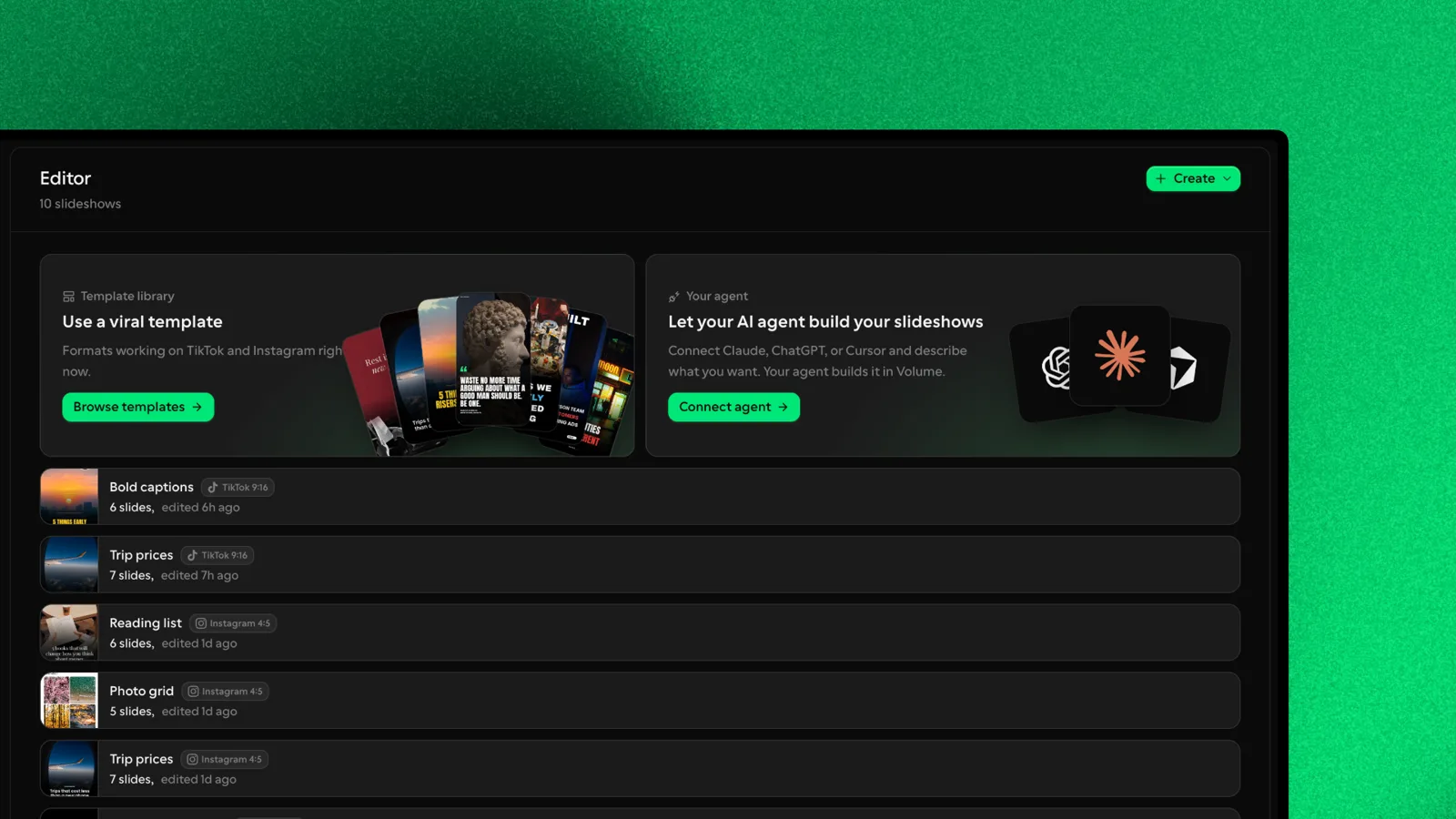
Start from a viral template. Click Browse templates in the Editor to see formats that are working on TikTok and Instagram right now. New templates are added regularly. Open the template you like, and your agent will build on top of it. For our Scratch AI slideshow, we used the X post format, which styles each slide to look like a post on X, with your name, handle, and avatar at the top.
Let your agent build from scratch. This works especially well for copying a format you've seen elsewhere. If you're scrolling and find a slideshow you want to replicate, copy the post's link and paste it into your AI tool. Ask the agent to read the post and recreate the format using the Volume MCP.
Volume supports both TikTok (9:16) and Instagram (4:5) sizes, so you can make one version for each platform.
Step 303Describe what you want
This is where your agent does the work. Open your template or a blank slideshow in Volume, then go to your AI tool and describe the slideshow. The more context you give it, the better the result.
Here's roughly what we asked Claude when building a slideshow for Scratch AI:
Use the Volume MCP. I have the X post format open. Using what you know about me, my experience with Scratch AI, and my business, build a slideshow with steps on how to use TikTok slideshows to grow a consumer app. Focus on the hook slide, the call-to-action slide, why TikTok slideshows are a great growth channel for consumer apps, the value of educational content, and what TikTok rewards: shares and saves are the most important metrics. Let me know if you have any questions.
If your AI tool has context about you, such as past chats, projects, or files, it will use that to make the slideshow specific to your business rather than generic.
As your agent works, switch back to Volume. You'll see the slides fill in as they're written. When the agent finishes, it summarizes what each slide covers and gives you a link to open the result in the editor.
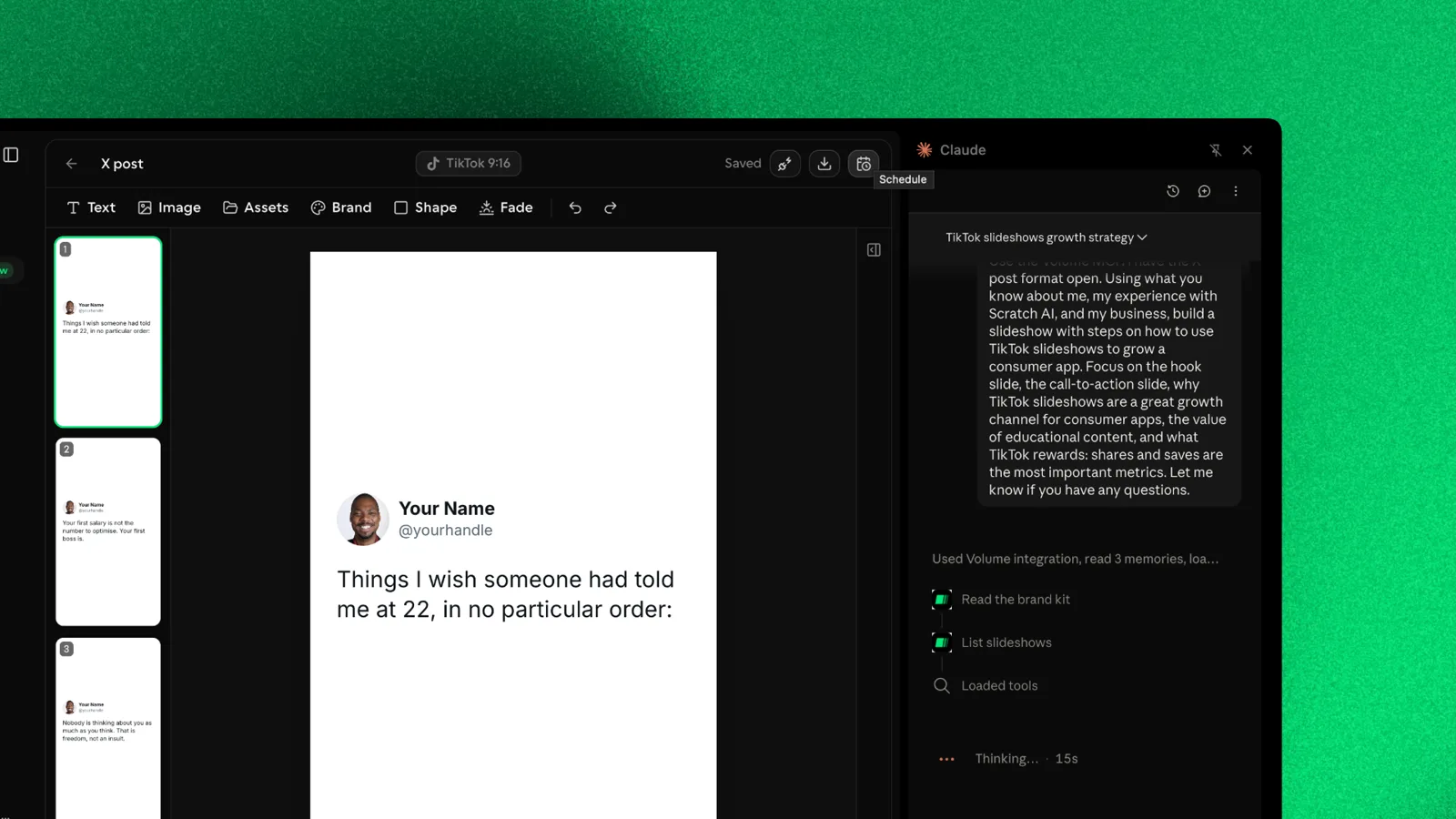
Tip: End your request with "Render it and show me before you say it's done." The agent then checks the finished slides visually before handing them back, so you catch layout problems early.
Step 404Refine in the editor
Everything your agent builds is fully editable. The editor toolbar gives you:
- Text to add or rewrite copy. Click any text layer on a slide to change it.
- Image and Assets to add pictures, product screenshots, or anything else from your Library.
- Brand to apply your brand colors, fonts, and logos, so every slideshow looks like yours.
- Shape and Fade for design touches.
The slide list on the left lets you add, duplicate, and delete slides. The Design panel on the right lets you change backgrounds and manage layers: reorder them, hide them, or delete them.
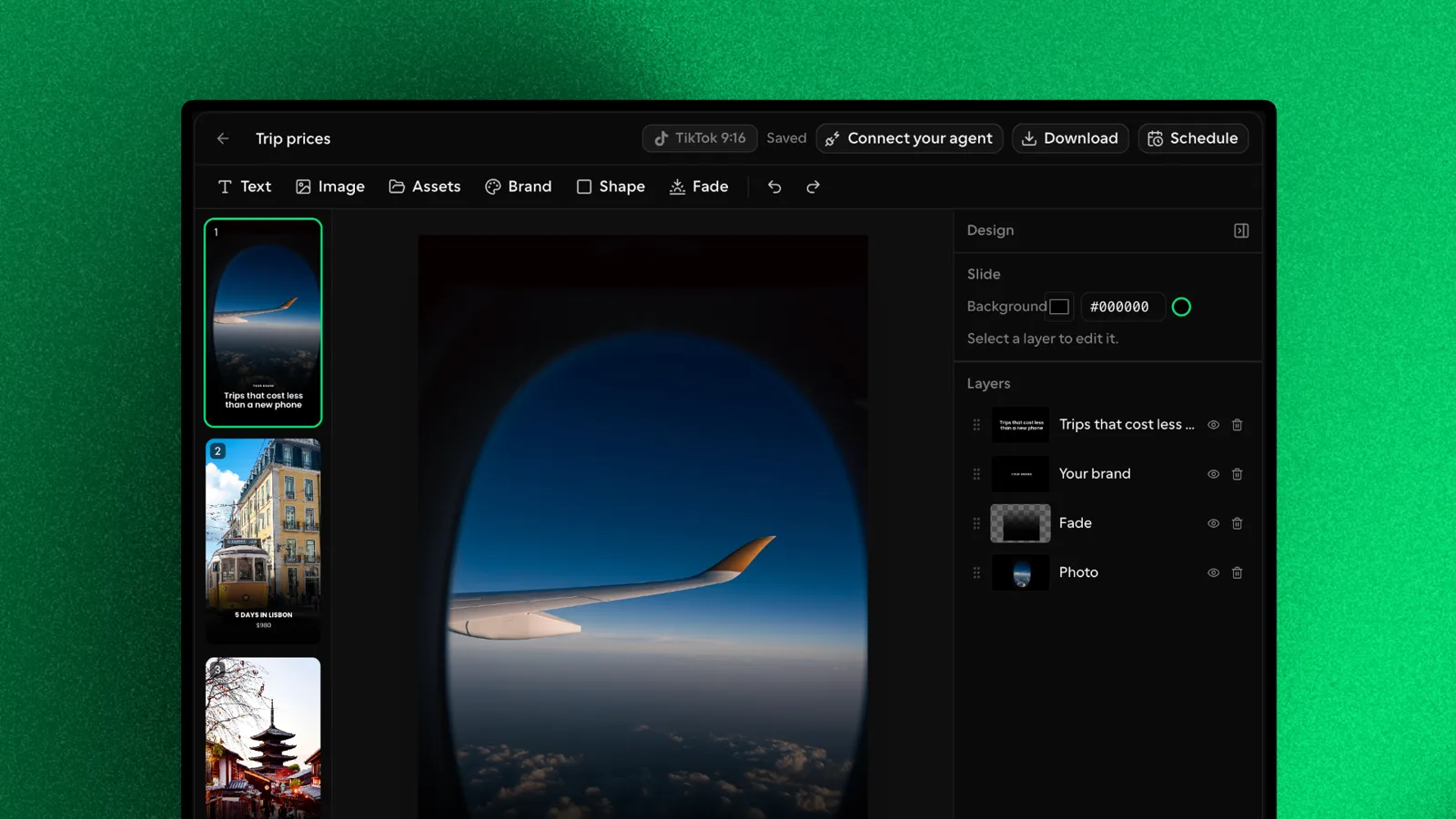
Step 505Or ask your agent to make the edits
You don't have to make changes by hand. Tell your agent what you want, and it updates the slideshow in Volume while you watch.
This works for anything: adding a slide in the middle, rewriting the hook, changing the tone, or making another version for a different audience.
Step 606Download or schedule
When you're happy with the slideshow, you have two ways to get it out:
- Schedule posts your slideshow directly to a connected TikTok account at the time you choose.
- Download exports the slides so you can post them anywhere yourself.
Auto-posting to Instagram isn't available yet, but it's coming soon. For now, download your Instagram slideshows and upload them manually.
Why this works
Slideshows need no filming, no face on camera, and no ad budget. Once you find a format that works, you can reuse it again and again. The Volume MCP removes the last bottleneck, which is the time spent building each one. You describe the idea, your agent handles the production, and you spend your time on what actually moves the numbers: better hooks, sharper CTAs, and posting consistently.
Have questions? Join our Discord, where we answer every question, or book office hours with the team from the Volume sidebar.